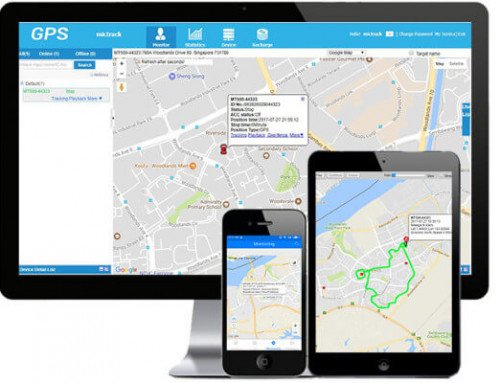
-
Subscribe the server plan
- Contact your sales or distributor to activate your device
- Subscribe the server from our official shop: https://www.mictrack.com/shop/gps-tracking-platform-service
- If your device has active please go to step 2.
-
Set up your tracker
- Step 1-Setup APN
- CALL (do not search from the internet because most of on the internet are wrong APN info) your sim card provider to get correct APN;
- Text command format: #803#0000#APN## or#803#0000#APN#APN username#APN password##
- Use your phone send text command (for example if APN is phone, the text is #803#0000#phone##) to tracker’s SIM number.

- Step 2-Setup IP/Port
- Text command format: #804#0000#IP(or domain)#Port##
- Send text command #804#0000#e.trackits.com#7700## to tracker’s SIM number.
- After setup device will reply: SET IP AND PORT OK
- Step 1-Setup APN
-
APP Install and Login
- Search “Yi tracker” in Google Play or iOS store to download and install the App(do not select Yi tracker2)
- Choose” Login by Device No.”
- Input server www.trackits.com
- Input your device’s ID number and password(default is 123456, you can change later) to log in.

-
PC Login
- Web: www.trackits.com
- Choose “ID No.”
- Input your device’s ID number and password(default is 123456)
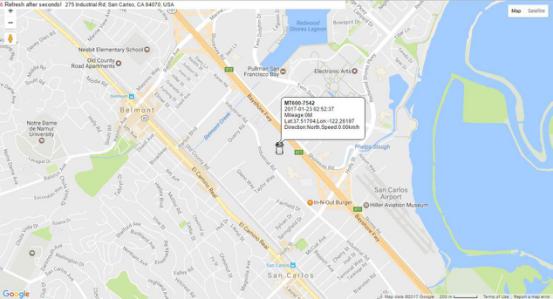
 1. Real-time tracking:
Enter the background interface, click “Tracking” can be real-time tracking (as shown below).
2. Historical trajectory:-
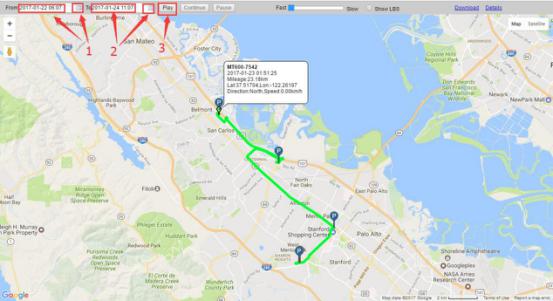
- Click “Playback” to enter the view track page; select the start time and cut-off time, click “Play” to view the vehicle during this period travel records (see below)
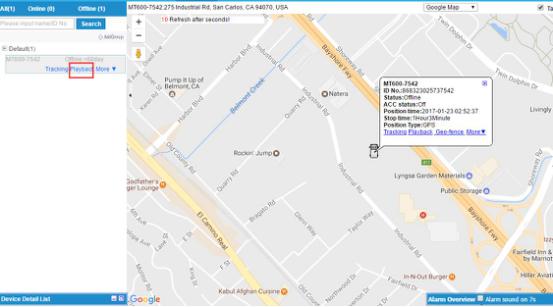
- Click “Playback” to enter the view track page; select the start time and cut-off time, click “Play” to view the vehicle during this period travel records (see below)
- 3. Set the time zone:
- Click the user name, select the local time zone and save (as shown below)
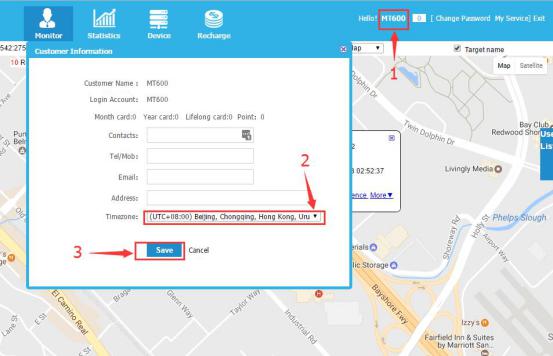
- Click the user name, select the local time zone and save (as shown below)
-
-
-
Troubleshooting
Issues Caused Solutions Send SMS to the device but no reply
1>Data only SIM card and don’t support SMS service, 2>New SIM card have not active
3>Card balance is not enough
Please check the SIM card status and make sure it can work.
The text command format is wrong Please check the command format again Password is wrong Please check the password again (default is 0000) 4G antenna install wrong Please check the 4G antenna if installed correctly. The connect network fails. Please check the BLUE LED and only send the SMS command when it is blinking. GPS platform shows logged off 1. Check the APN setting ; 2. Check IP and port
GPS platform shows no location or the coast of Africa. Device indoor/garage Take it outside for a 10-minute walk or drive, and its location should update. LED no light The backup battery is low power Please try to connect 12V Charge Led no light The backup battery voltage is over 3.7V. The device will auto-charge once detect to low voltage and then LED light, or LED will not night.
Share This Story, Choose Your Platform!
Related Posts